
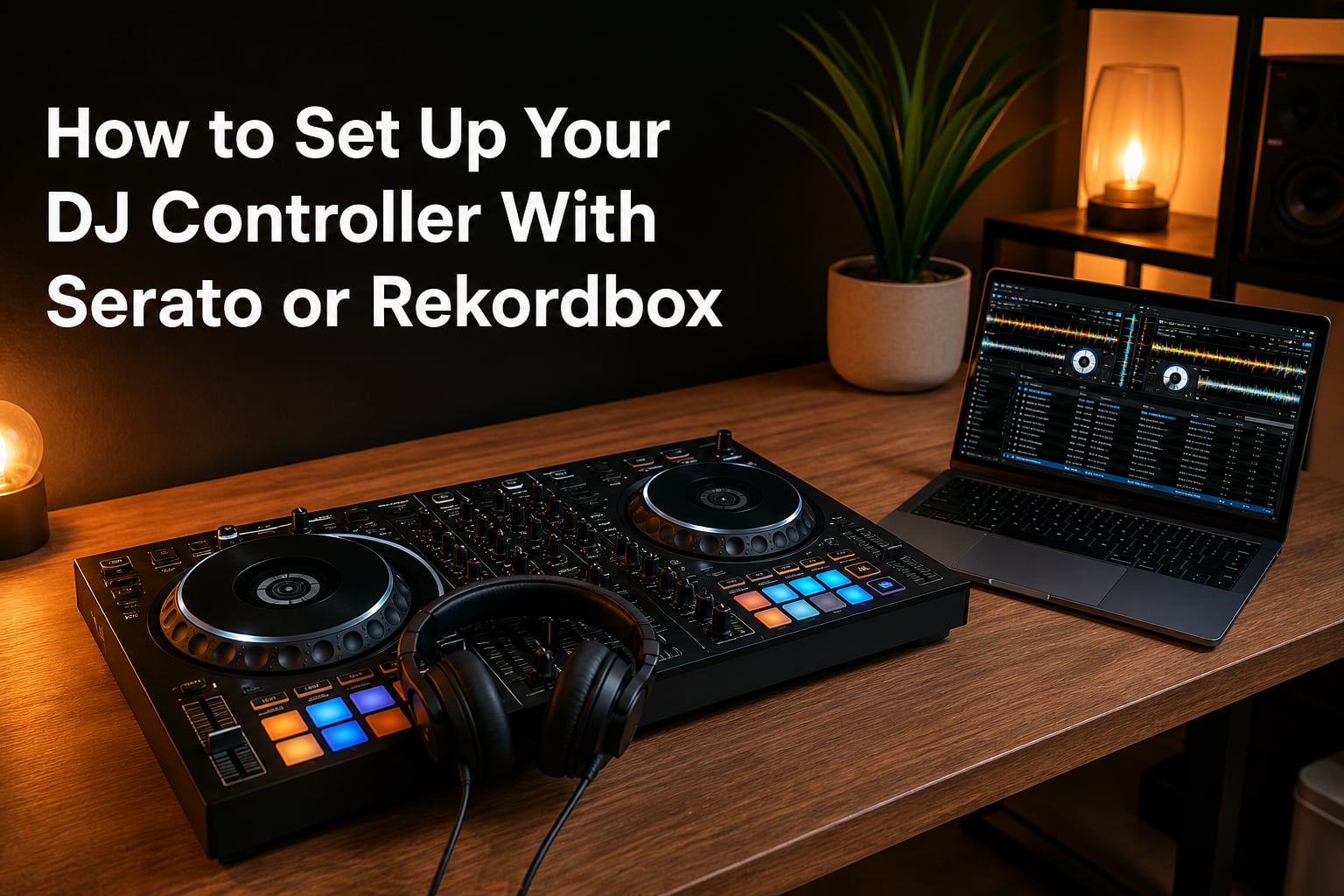
When I unboxed my first Pioneer DJ controller, I spent an entire Saturday wrestling with cables, drivers, and confusing menus before I could play a single track. That frustration is exactly why this DJ controller setup guide exists. Whether you just bought a DDJ-FLX4, a DDJ-400, or a club-standard mixer, the path from cardboard box to first mix follows the same beats. I’ll walk you through installing Serato DJ Pro or Rekordbox, connecting your hardware, dialing in low-latency audio, and prepping your library so you can actually start DJing instead of troubleshooting.
By the end, you’ll know exactly how to set up a DJ controller with either software platform. You’ll also understand the differences between Serato vs Rekordbox, what “hardware unlock” actually means, and how to fix the most common setup errors I see in beginner forums every week.
Table of Contents
What You Need Before Setting Up Your DJ Controller
Before you download anything, gather the essentials. A complete DJ controller setup starts with the right gear on your desk, not the right software on your laptop.
Here’s the checklist I run through with anyone setting up their first rig:
- A laptop or desktop computer with at least one free USB 2.0 or USB-C port. Macs and Windows PCs both work with both platforms, though Rekordbox is more demanding on older hardware.
- A powered DJ controller (most modern controllers draw power from the USB cable). If your model needs an external power supply, plug it in before connecting USB.
- A USB cable – usually included in the box, but USB-C to USB-A adapters are not. Check your ports.
- A stable internet connection for downloading software and creating accounts.
- Headphones for cueing and monitoring, ideally with a 1/4-inch adapter if needed.
- Speakers or a monitor connected via the controller’s master output.
- A music library in MP3, WAV, AIFF, FLAC, or AAC format stored locally on your drive.
One concept trips up most beginners: hardware unlock. Some controllers (especially club gear like the DJM-S11 or Pioneer XDJ-RX) are “locked” to specific software and only unlock their full feature set when paired with that software. Serato DJ Lite, the free version, also limits features unless you own supported hardware or upgrade to Serato DJ Pro. We’ll come back to this in the comparison section.
How to Set Up Your DJ Controller With Serato DJ Pro
Setting up Serato DJ Pro takes about 15 minutes from a clean laptop. I’ve done this process on Windows and macOS dozens of times. The official Serato forum recommends starting with drivers, which matches the featured snippet pattern. Here are the exact steps.
- Download and install the latest Serato DJ Pro software from serato.com. Avoid third-party download sites – the installer is signed and includes bundled drivers. macOS users may need to allow the installer in System Settings > Privacy & Security.
- Install your controller’s drivers before plugging in the hardware. Pioneer, Numark, Roland, and Denon DJ each ship their own ASIO or class-compliant drivers. Restart your computer after installation – I’ve seen countless “controller not recognized” threads that were solved by a simple reboot.
- Connect your DJ controller via USB after the restart. Wait 10-15 seconds for the hardware handshake. The controller’s LED ring or screen should power on.
- Open Serato DJ Pro. The software will detect your controller automatically and prompt you to “Install Driver” if anything is missing. Follow the prompts.
- Select your input source in the Setup > Audio tab. Your controller should appear in the dropdown. Choose it as both the Audio Output and the Audio Input source.
- Select your primary decks in Setup > Decks. Most controllers map to decks 1 and 2 by default, but you can assign virtual decks here if your controller has more layers.
- Enable “Allow hardware audio through” if you want audio playback when the software is closed. Toggle this in Setup > Audio for testing.
- Plug headphones into the controller’s headphone jack and check cue/monitor buttons respond. Load a track onto deck 1 and you should hear audio through both master output and headphones.
Pro tip from years of trial and error: if your controller came with a Serato DJ Lite license in the box, you can start with the free version. Upgrade to Serato DJ Pro only when you need recording, DVS control, or plugin support.
How to Set Up Your DJ Controller With Rekordbox
Rekordbox setup differs from Serato in two key ways. First, Rekordbox is owned by AlphaTheta (formerly Pioneer DJ), so Pioneer controllers are first-class citizens. Second, you need to switch from Export mode to Performance mode for live mixing. Here is the step-by-step process.
- Download Rekordbox from rekordbox.com. Choose the version that matches your OS. The Creative plan unlocks Performance mode and costs a small monthly fee, but you can use Export mode for free to test.
- Run the installer and sign in with an AlphaTheta, Pioneer DJ, or rekordbox.net account. The software activates against your hardware once connected.
- Install any required drivers. Pioneer controllers like the DDJ-FLX4 and DDJ-1000 are class-compliant on macOS but need ASIO drivers on Windows. Download from the AlphaTheta website under your product’s support page.
- Connect your DJ controller via USB and wait for the hardware to register. Pioneer hardware will flash a welcome screen.
- Open Rekordbox and choose Performance mode from the mode toggle at the top of the screen. Export mode is for preparing tracks; Performance mode is what you’ll use to mix live.
- Verify your controller is detected in Preferences > Audio. Rekordbox should auto-select your controller as the audio device. If not, manually choose it from the dropdown.
- Set the buffer size in Preferences > Audio to 256 samples for most setups, or 512 if you experience audio dropouts on an older laptop.
- Import your music library by dragging folders into the Collection tree, or use File > Import. Rekordbox will analyze tracks to detect BPM, key, and beat grids.
- Load a track onto a deck and confirm audio flows through your speakers and headphones. Test the crossfader and EQ knobs to confirm MIDI mapping is active.
If Rekordbox shows your controller as “Not connected,” the most common fix is launching the software after plugging in the USB cable, not before. Pioneer hardware is hot-pluggable but the software handshake is cleaner when hardware connects first.
Serato vs Rekordbox: Which DJ Software Should You Choose?
Both platforms will get you mixing, but they cater to slightly different workflows. I ran both on the same DDJ-FLX4 for three months. Here’s the honest comparison based on my own use and what r/Beatmatch and r/DJs users report.
| Feature | Serato DJ Pro | Rekordbox |
|---|---|---|
| License cost | Subscription or hardware unlock | Creative subscription or hardware unlock |
| Free tier features | Serato DJ Lite (limited) | Export mode (prep only) |
| Hardware support | Wide: Pioneer, Numark, Roland, Rane | Strong: Pioneer, AlphaTheta, some third-party |
| Library analysis | Beatgrids, key, BPM | Beatgrids, key, BPM, phrase detection |
| Cloud library sync | Limited | Dropbox/Google Drive compatible |
| Stem separation | Serato Stems (Pro) | Stem separation (Creative plan) |
| Hardware unlock depth | Many controllers unlock full Serato | Most Pioneer hardware unlocks Performance mode |
| DVS (timecode vinyl) | Industry standard for DVS | Available, less common in clubs |
Choose Serato if you prioritize plug-and-play simplicity, prefer DVS workflows with timecode vinyl, or use controllers from Rane or Numark. Choose Rekordbox if your hardware is Pioneer-branded, you want phrase-aware beatgrids, or you plan to export USB sticks for club CDJs.
Hardware unlock is the real decision driver. Many Pioneer controllers come with a free Rekordbox license, and many third-party controllers come with a Serato DJ Pro license. Check what came in your box before paying for either subscription.
Configuring Audio Settings for Low Latency
Audio latency is the delay between pressing a button on your controller and hearing the sound change. In DJing, anything above about 10ms becomes noticeable, and above 20ms your beatmatching falls apart. Here’s how to dial it in.
The single biggest setting is buffer size. Lower buffer means lower latency, but it demands more from your CPU. On a modern laptop, 256 samples at 44.1 kHz gives roughly 5.8ms of latency – plenty fast for DJing. Older laptops or USB hubs can drop audio at 128 samples, so 512 is a safer fallback.
Sample rate should stay at 44.1 kHz or 48 kHz. Serato and Rekordbox both default here, and there’s no benefit to higher rates for DJ work. Avoid 96 kHz unless you have a specific production reason.
ASIO drivers (Windows) or Core Audio (macOS) bypass your OS’s mixer for direct hardware access. Serato DJ Pro includes ASIO; Rekordbox installs ASIO automatically for Pioneer hardware. Always choose the controller’s native ASIO driver over generic Windows audio.
If you hear crackles, pops, or dropouts, raise the buffer size in small steps until the glitches stop. I’ve fixed more “broken” setups this way than by reinstalling software.
Setting Up Your Music Library and Preparing Tracks
A clean library is the difference between fumbling for the next track and a smooth set. Both Serato and Rekordbox will analyze your files to extract BPM, key, and beat grids. That analysis takes a moment per track, so I always run it overnight on a new library.
Serato organizes music into crates, which are like smart playlists tied to specific folders. Drag tracks into crates, build subcrates for genre or energy, and the software remembers your structure across sessions. Rekordbox uses playlists plus a smarter Collection tree, and adds My Tags for quick filtering.
To move between platforms, Rekordbox can export libraries as XML that Serato reads. You will lose cue points and loops in the translation, so I treat any export as a starting point rather than a perfect mirror. For ongoing cross-platform work, keep your source-of-truth files organized in folders by genre, then let each platform do its own analysis.
File format matters less than you think. Both platforms handle MP3, WAV, AIFF, FLAC, and AAC. Lossy formats like MP3 at 320kbps are perfectly fine for live DJing. Only worry about file formats if you’re doing stem separation or recording high-quality mixes.
Popular Controller Setup: DDJ-FLX4, DDJ-400, and DDJ-1000
Pioneer’s DDJ lineup dominates the home-DJ market, and each model has small setup quirks worth knowing. If you own one of these, here are the specifics.
DDJ-FLX4 is the current favorite for first-time DJs and works with both Serato DJ Lite and Rekordbox. It comes with a rekordbox license and a Serato DJ Lite license. To switch software, just connect via USB and open whichever you want – no firmware change needed. The FLX4 is fully class-compliant on macOS, so no drivers are required there. Windows users still need ASIO drivers from the AlphaTheta website.
DDJ-400 is the older entry-level hero. It unlocks Rekordbox Performance mode for free and pairs with Serato DJ Lite out of the box. The DDJ-400 is hot-pluggable, but I recommend connecting it before launching the software to avoid handshake errors on Windows.
DDJ-1000 is the 4-channel club-style unit aimed at intermediate and pro users. It includes a Serato DJ Pro license and unlocks full Rekordbox Performance mode. The DDJ-1000 has multiple USB ports for seamless DJ handoffs, which you’ll configure in Preferences > Mixer after both laptops are connected.
Troubleshooting Common DJ Controller Setup Issues
Most setup headaches fall into the same five buckets. Walk through this checklist before you start reinstalling software.
- Controller not recognized: Try a different USB cable (the most common cause), a different USB port, and a full reboot with the controller disconnected. On Windows, check Device Manager for unknown devices.
- Audio dropouts: Raise the buffer size in steps. Disable Wi-Fi power saving on your laptop. Close other audio apps, especially on macOS where Core Audio can conflict.
- MIDI mapping not responding: Confirm the controller profile is loaded in the software’s preferences. If mapping has drifted, reset to default and re-learn your custom mappings.
- One-sided audio: Check your RCA or XLR cables. Swap them left to right to confirm the cable, not the controller, is the problem.
- Software won’t open: Uninstall, delete leftover folders (especially in /Library on macOS or AppData on Windows), and reinstall. Always download fresh installers from the official sites.
Cross-Platform Compatibility: Using Serato and Rekordbox Together
Many DJs keep both Serato DJ Pro and Rekordbox installed on the same machine for testing tracks, prepping USB sticks for clubs, or switching controllers. They coexist fine, but you need to import your library into each separately. There is no live sync between them.
To run both smoothly, install each to its own folder, never launch them simultaneously, and back up your libraries before major software updates. Controllers like the DDJ-FLX4 and DDJ-400 work with both platforms, so the only “switch” is opening whichever software you need for the day.
For DJs who want one ecosystem, this is the moment to commit. For everyone else, dual installation is a useful test environment that costs nothing beyond the disk space.
Frequently Asked Questions About DJ Controller Setup
How do I set up a DJ controller with Rekordbox?
Download and install Rekordbox from rekordbox.com, then connect your DJ controller via USB. Install any drivers your hardware needs, switch to Performance mode using the toggle at the top of the screen, and verify your controller is selected as the audio device in Preferences. Import your music library, load a track on deck 1, and confirm audio plays through your speakers and headphones.
How do I set up a DJ controller with Serato?
Download Serato DJ Pro or DJ Lite from serato.com and install your controller’s drivers before plugging in the hardware. Connect the controller via USB, open Serato, and select your controller as the audio input and output in Setup. Choose your primary decks, then load a track to confirm audio plays through master output and your headphones.
Can I use a Serato controller with Rekordbox?
Some controllers work with both platforms, including the Pioneer DDJ-FLX4, DDJ-400, and DDJ-200. Pure Serato controllers like the Rane Twelve or Seventy only work with Serato, while pure Rekordbox hardware like the XDJ-RR only works with Rekordbox. Check your controller’s product page before assuming cross-platform support.
Is it better to use Serato or Rekordbox?
Both are excellent for DJs. Serato is known for plug-and-play simplicity and DVS workflows, while Rekordbox has stronger beatgrid analysis, USB export for CDJs, and the widest hardware-unlock coverage for Pioneer gear. Pick whichever came free with your controller, then try the other as your setup matures.
Final Thoughts on Your DJ Controller Setup
A clean DJ controller setup is the foundation of every good set. Install the software, install the drivers, plug in the USB cable, and confirm audio flows before you start cueing tracks. Once your DDJ-FLX4, DDJ-400, or DDJ-1000 is talking to Serato DJ Pro or Rekordbox, the rest is just practice.
Pick a handful of tracks you already know, drop them into a single crate or playlist, and aim for a 20-minute continuous mix. Your first mix will be rough. Your tenth will start to groove. That’s how every DJ I know learned, and it works whether you stick with Serato or commit to Rekordbox.
5 thoughts on “How to Set Up Your DJ Controller With Serato or Rekordbox (September 2026)”